User manual
Learn the workflows. Build better business habits.
Welcome to the TelPOS ERP user manual
Learn the daily workflows that connect your sales, stock, customers and business reports. Start with a task below or search the contents. This guide explains how to use TelPOS ERP; it does not cover installation or software updates.
Choose your learning path
How to use this guide
Use the left contents panel to choose a chapter. The right outline jumps to a topic within that chapter. Search matches both chapter titles and instructions. Copy a chapter link to share it with a colleague. Print a chapter or the complete manual using the controls above.
Before you begin
Sign in to your own workspace. Menus depend on your package, enabled modules, role and permitted locations. If a feature is absent, ask your business administrator to check access before attempting the task. All screenshots show a separate fictional training workspace; zero balances are examples, not business results.
Practice safely
Ask your administrator for a training workspace. Final sales, payments, stock receipts, returns and journals affect reports. Use Draft when preparing a document that should not yet become a final sale. Never create practice transactions in your live accounts without authorisation.
Why choose TelPOS ERP?
TelPOS ERP brings everyday business work into one connected workspace, with web and mobile access for the roles your business authorises.
Benefits for your business
- Sell with context: find customers, products, prices and previous documents from one workflow.
- Control stock: follow purchases, sales, transfers, adjustments and returns by location.
- See what is owed: separate sales from payments and follow unpaid customer invoices and supplier balances.
- Understand results: compare performance periods, review profit and investigate the transactions behind totals.
- Give staff the right access: use roles and location permissions instead of sharing one administrator login.
- Stay in touch: use Bulk SMS for customer communication, delivery tracking and supported transaction reminders.
- Work across locations: manage branches in one business and compare permitted locations.
Choose features that fit your work
Retail and wholesale teams typically use POS, invoices, purchases and stock. Service teams can use flexible invoice items. Manufacturers add recipes and production. Hotels use room bookings and guest operations. Accounting, payroll, repairs and other specialist modules appear only when included and enabled. Confirm your package and device requirements with support before relying on a specialist workflow.
Web and mobile together
Use the web for detailed configuration, large tables and printing. Use the mobile app for permitted daily tasks while moving around your business. Online features require a working connection. Supported offline tasks must finish syncing before web stock and reports can include them.
Sign in, language and appearance
Use the workspace address supplied by your administrator and your individual TelPOS ERP account. External workspaces use their own domain and credentials.
Step by step
- Enter your username and password, then select Sign in. Complete any verification requested for your account.
- Confirm the business name and location before entering transactions.
- Use your profile or the available language selector to choose English or Kiswahili. Use the appearance control to choose Light, Dark or System.
- Sign out on shared devices after finishing your work.
If sign-in fails
Check the workspace domain, connection and username. Use Forgot Your Password? if available, or ask the administrator to confirm that your account and subscription are active. Do not repeatedly resubmit a sale when reconnecting; first check whether it was saved.
Common English and Kiswahili labels
| English | Kiswahili |
|---|---|
| Expenses | Matumizi |
| Invoice due / unpaid invoices | Madeni |
| Top up SMS | Ongeza SMS |
| Sales | Mauzo |
| Purchases | Manunuzi |
Read your home dashboard
The dashboard summarises activity for the selected period and permitted locations. A sale, a cash receipt and a profit figure are different measures.
Step by step
- Open Home and select the date filter. Choose a preset or a custom range, then apply the range.
- Select a location where that filter is available. Wait for the totals to refresh.
- Review sales, purchases, expenses and due balances. Open the relevant list or report to investigate a figure.
- Use payment-due lists and stock alerts to plan follow-up work.
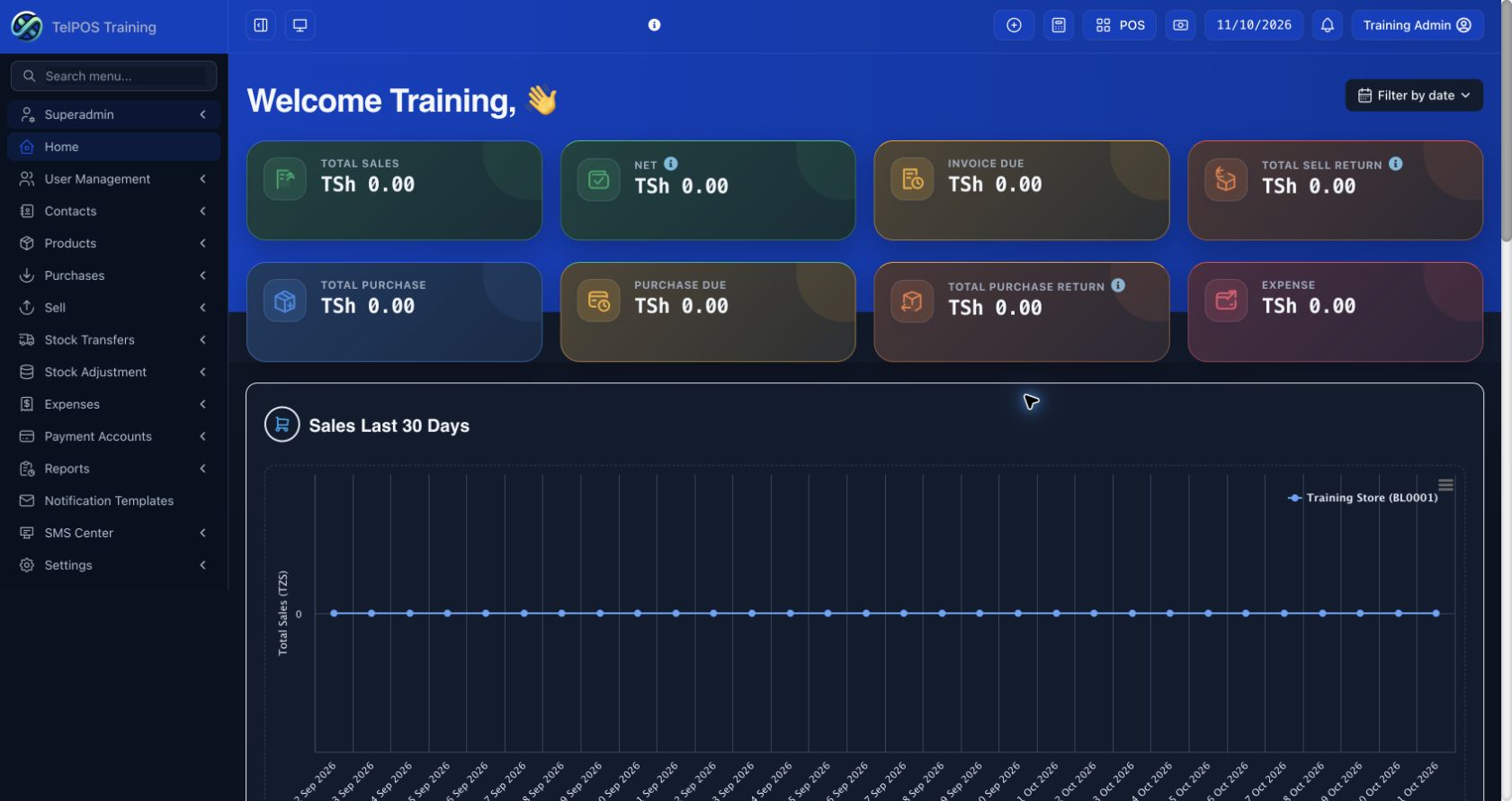
Read the numbers correctly
A final credit sale may increase sales while remaining unpaid. Invoice due is money still owed, not additional revenue. Net and profit depend on recorded costs and expenses. Compare identical locations and dates when checking two reports.
Why a card can be empty
Check the date, location, permissions and whether records are final or still drafts. A recently saved mobile record may not appear until its sync completes. A hotel-enabled workspace may include accommodation activity according to its configured operational rules.
Find, filter and export records
Most lists share search, date filters, column visibility, sorting and export tools. Use the filters before exporting.
Step by step
- Choose the business location, date range and other filters you need. Automatic report filters refresh results after a completed selection.
- Type in the table search field to narrow matching records. Click a column heading to change sorting.
- Use Column visibility to show the fields you need. Scroll horizontally if the table is wider than the screen.
- Choose CSV, Excel, PDF or Print where available. For wide reports choose landscape and review the preview before sharing.
Check the exported scope
Read the selected dates, location and row count. Some lists export their loaded or filtered rows; select an appropriate entry count and verify the downloaded file contains the intended records. Hidden columns follow the export controls, and unassigned custom fields should not appear. Never assume a displayed page contains the whole business history.
Share useful evidence
Include the report title, period, location and currency. Share customer and financial details only with authorised recipients. The print preview lets you select the printer or save the document as a PDF.
Create customers and suppliers
Keep one contact record for each customer or supplier so invoices, balances and communication stay together.
Step by step
- Select Add. Choose Customer, Supplier or Both according to the relationship.
- Enter the name and the contact details you actually have. Save a correct mobile number and email if you plan to send notifications.
- Complete tax details, address, payment terms and credit limit where applicable. Add an opening balance only when it is a verified amount owed before your starting records.
- Save, then search the list to confirm the contact and avoid duplicates.
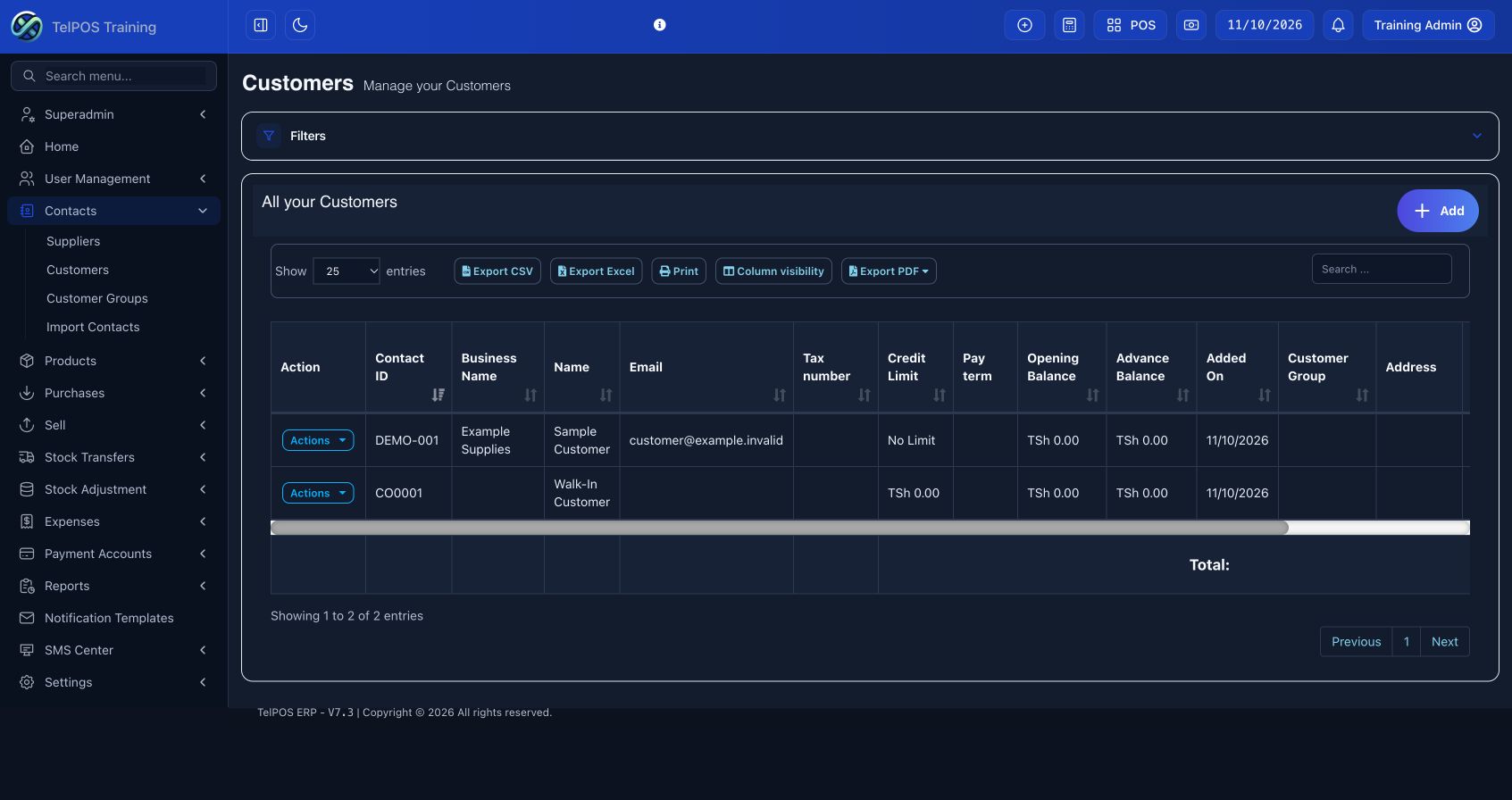
View a contact ledger
Open the contact and select the ledger or transactions view. Set the period and compare invoices, payments, returns and opening balances. Print or export the statement when following up a customer balance.
Good contact habits
Use the existing record for repeat customers. Correct a phone number on the contact record before sending messages. A contact opening balance is not a new sale and should not duplicate an invoice already entered.
Add products and services
Create a clear product catalog with units, prices and optional classification. Stock-tracked products and non-stock services behave differently.
Step by step
- Enter the product name and SKU. Enter the optional Part Number after SKU when relevant to spare parts or equipment.
- Choose a unit. Add brand, category and subcategory when useful, and assign the business locations that will use the item.
- Keep Manage Stock enabled for physical stock. Turn it off for a service that does not consume a tracked quantity. Set an alert quantity for stocked items.
- Choose Single, Variable or Combo as appropriate. Enter purchase cost, selling price and tax treatment. Upload a clear product image.
- Save, or choose Save & Add Opening Stock to record verified starting quantities.
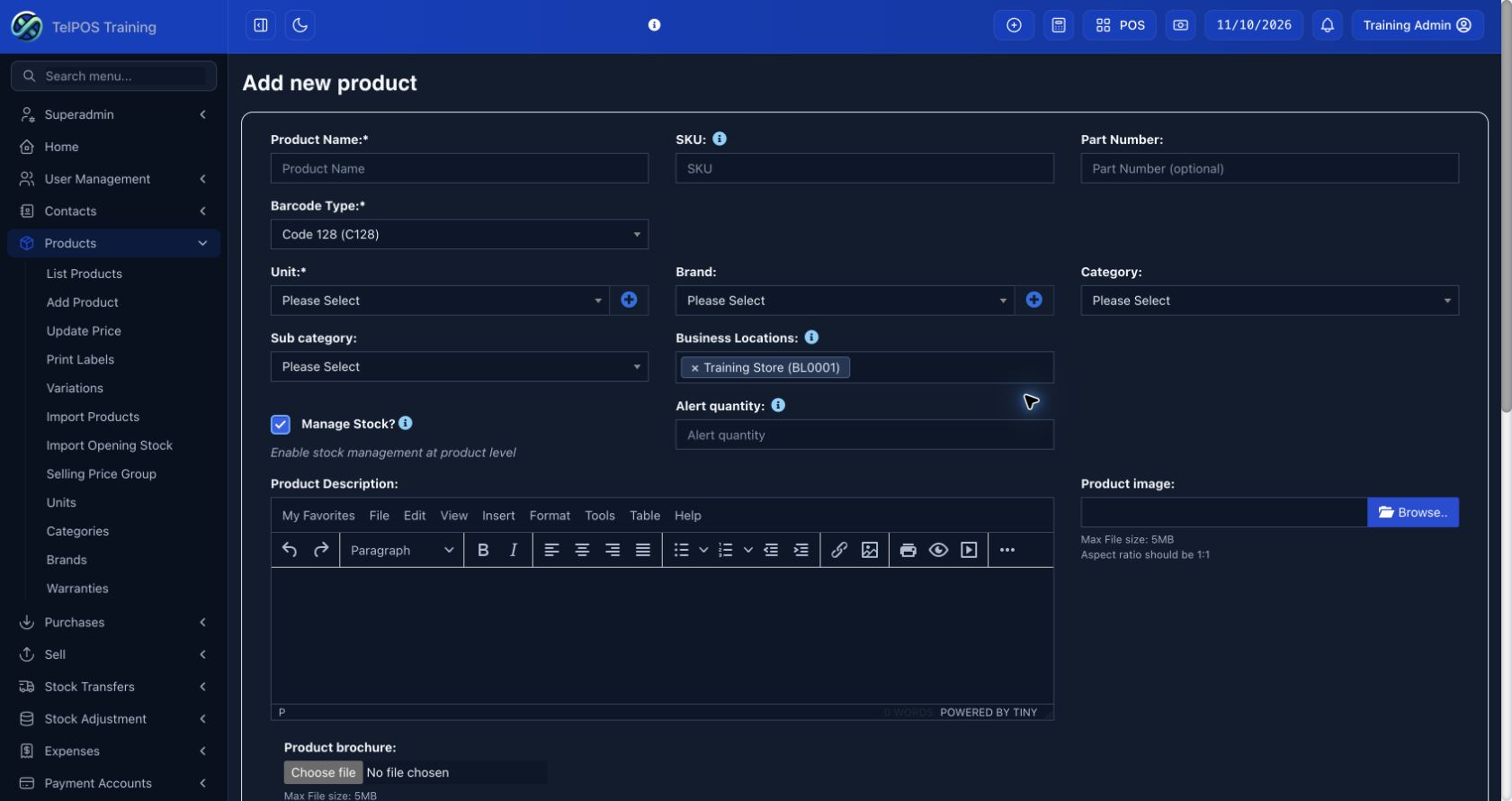
Single, variable and combo products
Single is one item and price structure. Variable separates options such as size or colour, each with its own variation. Combo groups component products; review component quantities carefully because a sale can consume those components.
Before you sell
Confirm the correct location, selling price and tax setting. Purchase cost matters for profit reports. A product image, brand or category does not replace a SKU. Search by name, SKU or part number where that screen supports it.
Organise units, brands, categories and price groups
Consistent classifications make searching and reporting easier.
Step by step
- Create the unit used for quantities, such as Piece or Kilogram. Allow decimals only when the unit requires them.
- Create a category and, if needed, a subcategory under it. Add brands separately.
- Assign these values on each product. Use the same spelling rather than creating near-duplicates.
- If you sell at different rates, create an authorised selling price group and enter its product prices. Select that group during the applicable sales workflow.
Examples
A product can use category “Hardware”, subcategory “Fasteners”, brand “Example Brand” and unit “Box”. Wholesale and retail can be price groups; they are not separate physical stock quantities.
Changing existing classifications
Edit the product classification when correcting a mistake. Before deleting a unit, brand or category, review dependent products and ask the administrator about any restrictions.
Record opening stock and review stock history
Opening stock records what is already on hand when you begin using the system. Purchases record later receipts.
Step by step
- Count the physical stock at each location. Confirm the product unit and variation.
- Open the product’s opening-stock action or use Save & Add Opening Stock when creating it.
- Enter quantity, purchase cost and applicable lot or expiry details for each location. Save once.
- Review Stock Report and Stock History to confirm the resulting balance.
Avoid counting stock twice
Do not enter the same goods as both opening stock and a received purchase. To explain a mismatch, review opening stock, receipts, sales, returns, transfers and adjustments in order before making another change.
Lots and expiry
Where enabled, enter the correct lot and expiry date when receiving stock. Follow your business’s expiry policy when selling. Stock quantities and units must match the physical goods.
Import products and print labels
Use the current template supplied by your own workspace. A small checked import is easier to correct than a large unchecked file.
Step by step
- Download the import template and read its column instructions. Keep required headers and the supported file format.
- Prepare unique SKUs, valid units and accurate prices. Test a few fictional or approved records first in a training workspace.
- Upload the completed file, review validation messages and check the resulting product records.
- For labels, select products or variations, enter quantities, choose the label format and preview before printing.
Correcting errors
Fix the reported rows in the source file. Check whether any records were already imported before retrying. Do not assume a second import updates the first one unless the screen explicitly supports that operation.
Label checks
Confirm the barcode matches the item, the price is current and the printer uses the intended paper dimensions. Print one test label before a large batch.
Issue a normal invoice
A normal invoice uses configured products. Choose the location and document currency before adding items.
Step by step
- Choose the business location and Document Currency. For a foreign-currency document, verify the displayed exchange-rate instruction and enter the correct rate.
- Select the customer, payment term and date. Leave Invoice No. blank to use the selected invoice scheme, unless an authorised manual number is required.
- Set Item entry to Normal — product catalog. Search or scan the product, then check quantity, unit price and line discount.
- Review invoice discount, order tax, shipping and additional expenses. Check the total in the selected currency.
- Choose Final when issuing the invoice. Record only the money actually received, using its payment method and account.
- Select Save or Save and print. Open All sales to confirm the invoice number, total and payment status.
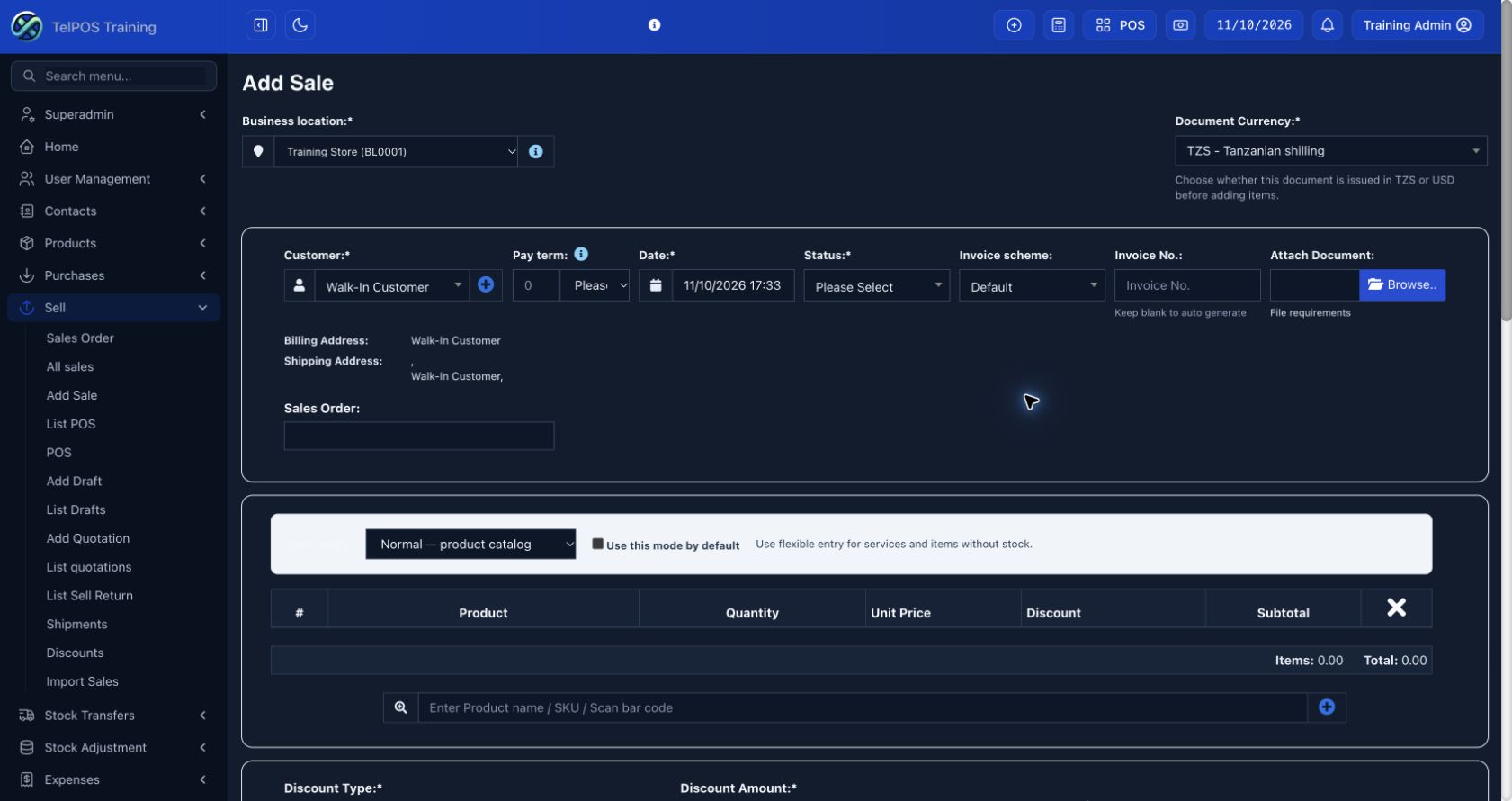
Before saving
Check the customer, location, dates, currency, tax and payment. Final invoices affect sales and stock for tracked items. A printed invoice is not proof of payment unless the recorded payment supports that status.
If the button appears stuck
Wait for the response, then check All sales for the invoice before clicking again. If it is absent, note the time and validation message. Restore your connection or sign in again if the session expired, and retry only after confirming that no duplicate was created.
Issue a flexible invoice
Use flexible entry for services or one-off items without tracked stock. The document uses the same assigned invoice layout as a normal invoice.
Step by step
- Select the customer, location, currency and date as for a normal invoice.
- Choose Flexible — enter items directly. Type an item name or select an earlier suggestion.
- Enter the optional description, unit, quantity and unit price. Use Add item or the row’s plus button for more lines.
- Check the automatic subtotals. Add an optional internal cost when you need that item’s cost included in profit calculations.
- Apply discount, tax, shipping and additional expenses as needed. Choose the document status, record any payment and save.
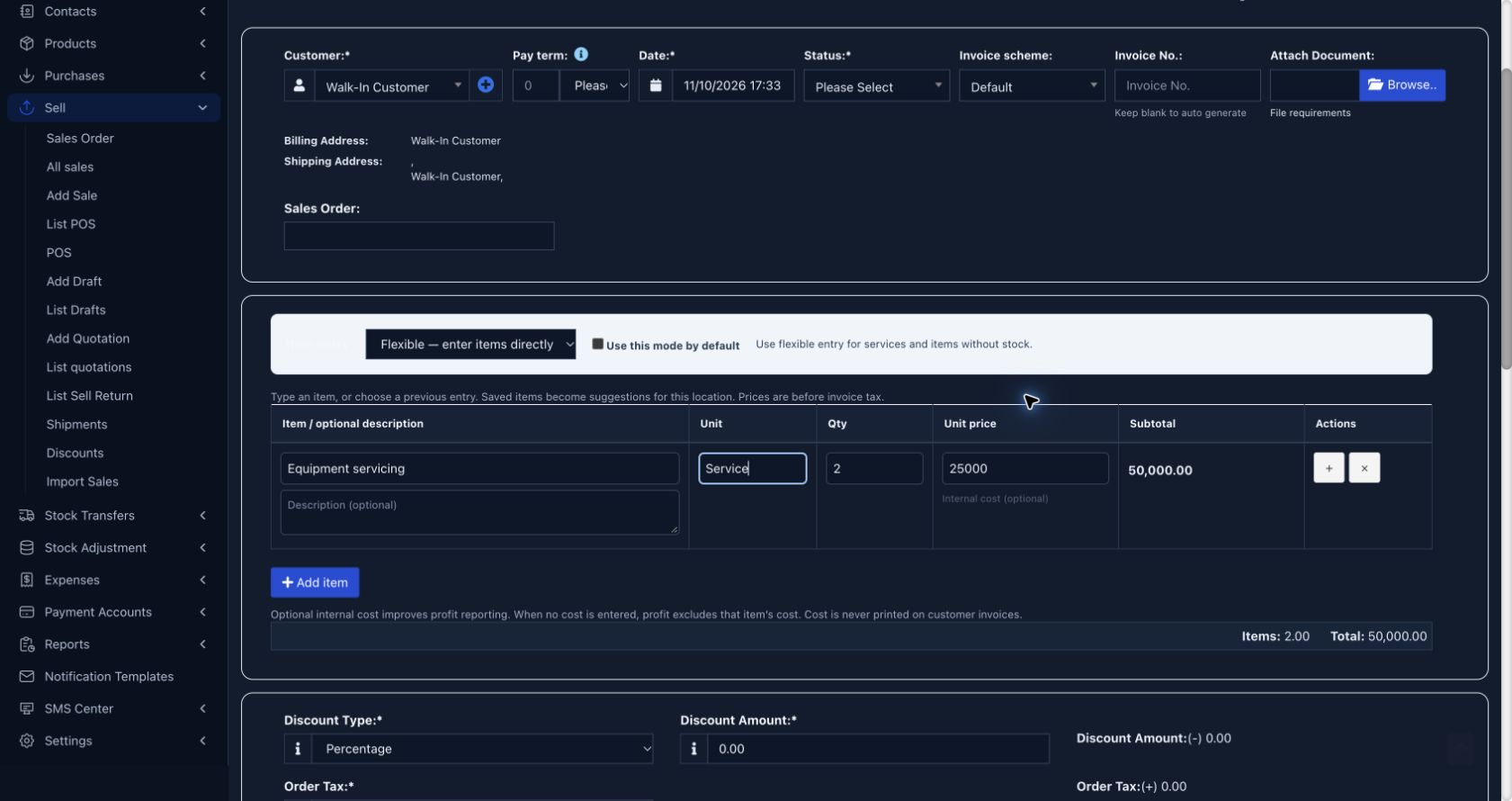
Worked example
Two services at TZS 25,000 each produce a line subtotal of TZS 50,000 before invoice-level tax, discount or other charges. Internal cost is not printed on the customer invoice.
Permissions and suggestions
Flexible entry requires permission to edit sale prices. Saved flexible items become suggestions for reuse at the location. Use the normal catalog workflow for goods that must reduce tracked stock.
Drafts, quotations and proformas
Choose the document status that matches the purpose. A proposal and a final sale should not be treated as the same event.
Step by step
- Create the document with the customer, item lines and commercial terms.
- Choose Draft to keep work in progress, Quotation for an offer, or Proforma where that option is available.
- Save and preview the document. Confirm that its heading matches the chosen status.
- When the customer accepts, use the available conversion or edit action to make the document a final sale. Check amounts, stock and payment before saving.
Status versus payment
Final is a sale status. Paid, partial and due describe payment. A final invoice can be unpaid. A quotation should not be used as evidence that goods were delivered or money was received.
Find existing documents
Use List Drafts, List quotations or the relevant sales list and filters. Reuse the saved document when converting it rather than entering a second unrelated invoice for the same transaction.
Create and partially serve customer orders
An order tracks the customer’s requested quantities. The invoice records the quantities actually served.
Step by step
- Select Add Sales Order. Choose customer, location and the requested products and quantities. Save the order and note its number.
- When serving it, open Add Sale and choose the same customer and location. Select the saved number in Sales Order.
- Review the populated items. Enter only the quantities being served on this invoice.
- Finalise and save the invoice. Return to Sales Order and check remaining quantities and status.
- Repeat for the remaining quantities when supplied, selecting the original order again.
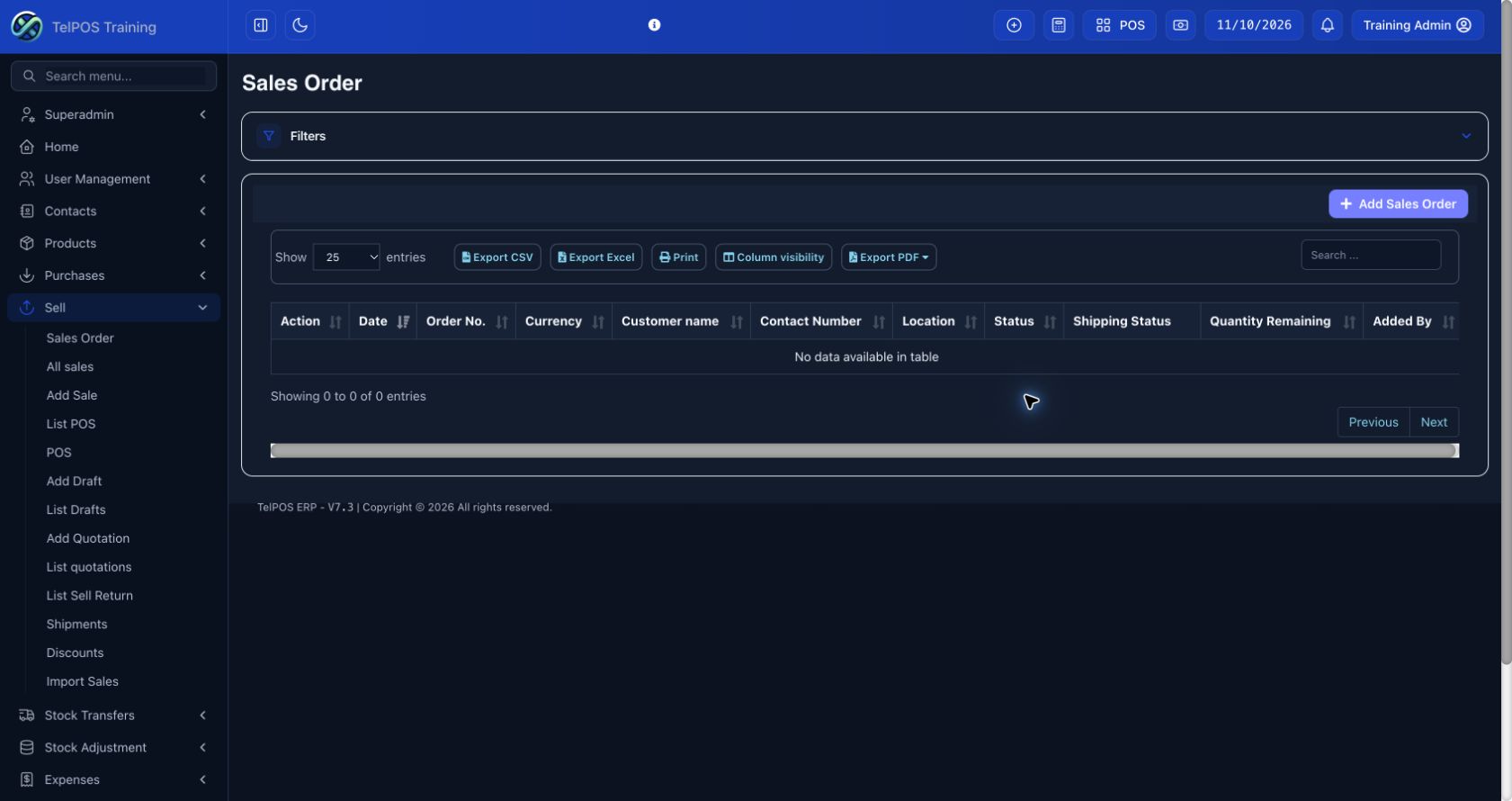
Example: serve an order in two deliveries
For an order of 10 units, invoice 4 units first. The remaining 6 should stay outstanding and the order is partially served. Invoice the remaining 6 later to complete it. Check the remaining quantity before each invoice.
Keep three statuses separate
Order fulfilment describes quantities served. Shipping status describes delivery progress. Invoice payment status describes money received. Completing one does not necessarily complete the others.
Make a sale at the POS
The POS is designed for quick product selection, checkout and receipt printing.
Step by step
- Choose the location and open your cash register if prompted. Enter the verified opening cash amount.
- Select the customer and search, scan or choose products. Check quantity, price and any permitted discount.
- Review the payable amount. Choose the appropriate checkout/payment option and enter the received amount and method.
- Complete the sale once. Check change due and the saved receipt before handing goods to the customer.
- Use Recent transactions to find and reprint the sale when needed.
Keep your register accurate
Record actual cash received and separate non-cash methods. Do not use a discount to hide a payment shortage. At the end of the shift, count cash and compare it with the register report.
Printing at the counter
Use the receipt layout selector when available to choose 80 mm or 58 mm. Confirm the printer and paper width in the preview. Direct printing depends on a configured supported printer connection; ordinary browser printing can still require the print dialog.
View sales, take payments and reprint invoices
Use the original invoice for later payments and printing so the sales history remains connected.
Step by step
- Filter by date, location, customer or payment status, then search for the invoice number.
- Open Action to view the invoice or its payment history.
- To collect an outstanding balance, use the payment action and enter the amount received, paid-on date, method and payment account.
- Save and confirm the new balance. Use Print Invoice for A4 or the available 80 mm / 58 mm receipt option.
Unpaid and partially paid invoices
Use due and partial payment filters for follow-up. A later payment should reduce the original invoice balance; it should not create a new sale. Review customer advances before allocating an advance payment.
Editing a sale
Editing depends on your permission and the business’s allowed edit period. Review stock, payment and linked-order effects before changing a final invoice. If editing is unavailable, ask an authorised administrator to use the correct correction process.
Handle sales returns and shipments
Use the return workflow for goods coming back, and shipping status for deliveries. Preserve the connection to the original transaction.
Step by step
- Find the original sale and open its return action. Select the returned items and actual quantities.
- Review the return value and any refund/payment details, then save. Confirm the return record and stock effect.
- For a delivery, open the shipment details and update shipping status, address, recipient and delivery information as appropriate.
- Check the invoice, order and payment separately before marking work complete.
Avoid duplicate corrections
Do not delete and re-enter an invoice merely to record a normal return. Do not also add a stock adjustment for the same returned goods unless an authorised separate correction is needed.
Discounts and customer rewards
Use configured discounts and rewards only when enabled and permitted. Check validity, eligibility and the final total. Invoice-level discounts can be treated differently from line discounts in detailed profit breakdowns.
Receive a purchase and record supplier payment
A received purchase increases available stock for tracked products. Payment status is separate from whether goods were received.
Step by step
- Choose supplier, business location, purchase date and supplier reference. Select the document currency and exchange rate if required.
- Choose the receipt status that matches reality: do not mark goods received before they arrive.
- Search products and enter quantities, unit costs, discounts and tax. Review lot/expiry details if enabled.
- Add purchase-level discount, shipping and other costs where applicable. Check the purchase total.
- Record the amount actually paid with its method and payment account. Save and verify the purchase and stock report.
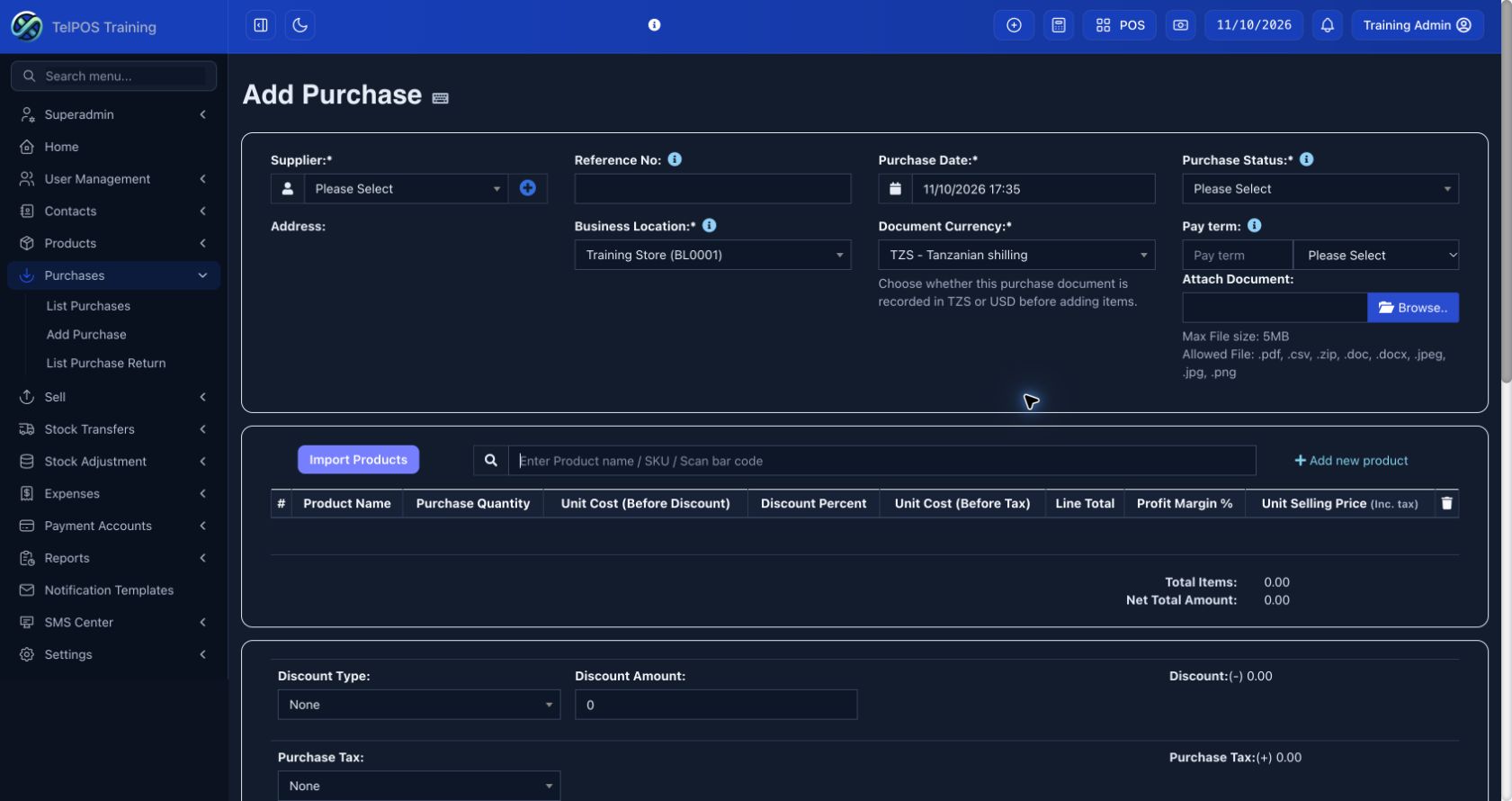
Credit purchases
Enter the supplier payment term and leave unpaid amounts due. Add later payments against the saved purchase rather than creating another purchase for the payment.
Selling price changes
If the purchase form allows changing selling prices, confirm the new price before saving. A cost change and a selling-price change are different decisions.
Purchase orders, requisitions and supplier returns
These workflows help request goods, place orders and return stock to a supplier. They appear only when enabled.
Step by step
- Create a requisition for internal approval where your business uses it. Identify the required products, quantities and location.
- Create a purchase order for the supplier and review requested quantities and terms.
- When goods arrive, use the available purchase-order link in the purchase workflow and record the received quantities.
- For a supplier return, find the original purchase, choose its return action, enter the returned quantity and save the return.
Review outstanding quantities
An order is a request, not proof of receipt. Keep part deliveries linked to the original order and review what remains outstanding. Check the supplier ledger after returns and refunds.
Transfer stock between locations
A transfer moves existing stock between branches of the same business. It is not a customer sale.
Step by step
- Select the source and destination locations. Confirm they are different and you have access to both as required.
- Choose products/variations and enter the quantities physically being sent.
- Enter the transfer date, reference, status and shipping charges where shown. Save.
- Follow the transfer through its available status actions. Confirm receipt at the destination and check both stock balances.
Before completing a transfer
Count goods at dispatch and receipt. Stock effects depend on the transfer status; verify the source and destination stock histories instead of creating a second transfer if receipt is delayed.
Record a stock adjustment
Use an adjustment for verified loss, damage or a physical-count correction, with a clear explanation.
Step by step
- Investigate the difference in Stock History first. Check for unrecorded purchases, sales or transfers.
- Select the affected location, date, product and quantity in the adjustment form.
- Choose the adjustment type and enter the reason and recoverable amount if applicable.
- Save, then review the stock-adjustment report and resulting quantity.
Maintain an audit trail
Keep the count sheet or supporting evidence. Adjustments can affect profit and stock value. Use the transaction’s normal return or correction workflow when that is the real cause.
Record and edit expenses
Record business spending under consistent expense categories so reports are useful.
Step by step
- Choose location, date, category and subcategory. Enter a reference or leave it blank for automatic numbering.
- Enter the total, applicable tax and a clear expense note. Attach the receipt if available.
- Select the employee or contact the expense relates to when required.
- Record only the amount paid, its method and payment account. Save and check List Expenses.
- To correct an expense, use its authorised edit action and review both the expense amount and payment details before saving.
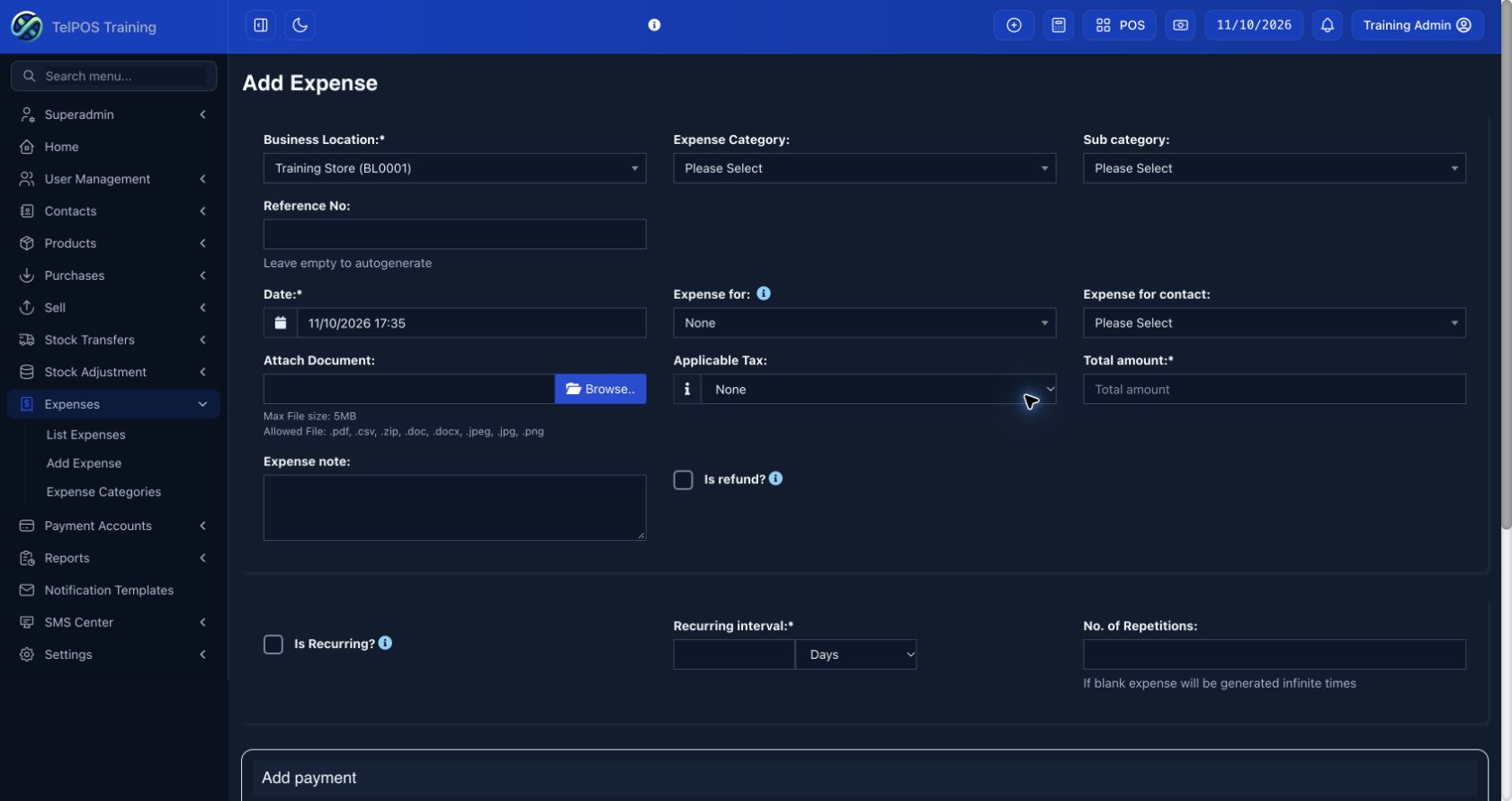
Worked example
For TZS 30,000 in transport costs with TZS 20,000 paid, enter the expense total as TZS 30,000 and the payment as TZS 20,000. Verify the TZS 10,000 balance in the saved expense, then find the entry in Expense Report using the same date and category.
Recurring expenses
Enable recurrence only for a genuine repeated expense. Set the interval and repetition limit carefully; a blank repetition count can continue indefinitely. Check generated entries to prevent duplicates.
Expense reporting
Open Reports → Expense Report and filter by date, location and category. A stock purchase normally belongs in Purchases rather than being entered again as an expense.
Set up payment accounts and link payments
Payment accounts track where money is held, such as a cash drawer, bank account or mobile-money account.
Step by step
- Open Account Types if you need to organise account types and subtypes.
- On Accounts, select Add. Enter the account name, type, account number and relevant details. Enter a verified opening balance only once.
- When recording a sale, purchase or expense payment, select the account that actually received or paid the money.
- If the page reports unlinked payments, open View Details, inspect each payment and assign the correct account using the available action.
- Review account transactions and balance after linking.
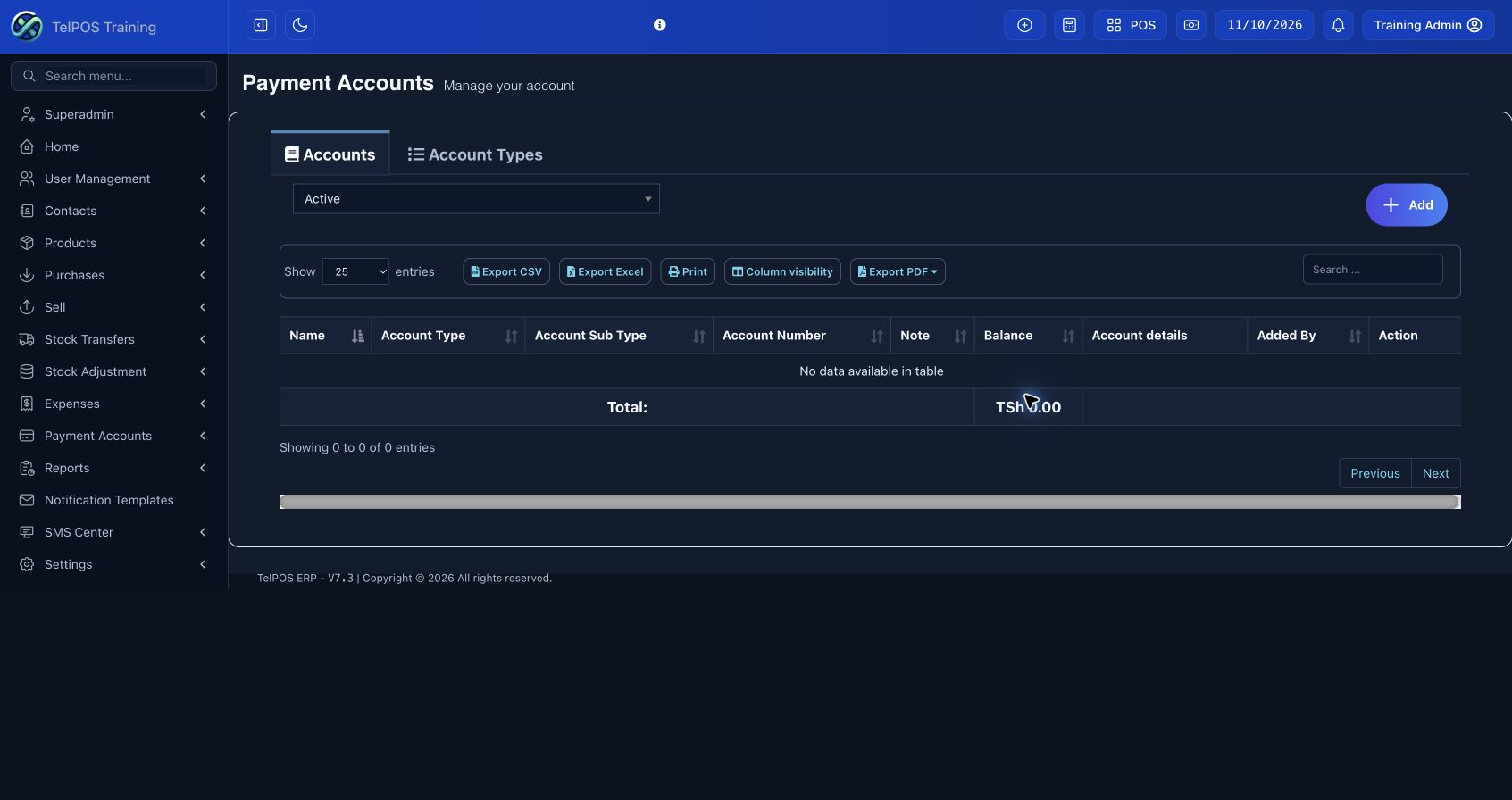
Unlinked does not mean unpaid
A payment may be recorded against an invoice but have no payment account selected. Link that existing payment; do not collect or record the same payment a second time.
Transfers and deposits
Use the available account transfer/deposit action for movement between accounts. Moving money between your own accounts is not another sale. Reconcile balances with cash counts and bank/mobile-money statements.
Create a balanced journal entry
Manual journals record accounting adjustments. Use them with an approved chart of accounts and a clear supporting explanation.
Step by step
- Select Add/Create and enter the journal date, reference and description.
- Choose an account for each line and enter either a debit or credit amount. Add lines as needed.
- Check that total debits equal total credits. For example, a fictional TZS 10,000 transfer from cash to bank debits Bank TZS 10,000 and credits Cash TZS 10,000. Use a manual journal only if the transfer has not already been posted by the configured workflow.
- Save a draft while preparing it, or post it when reviewed and authorised.
- Open the saved journal and confirm its status and ledger effect.
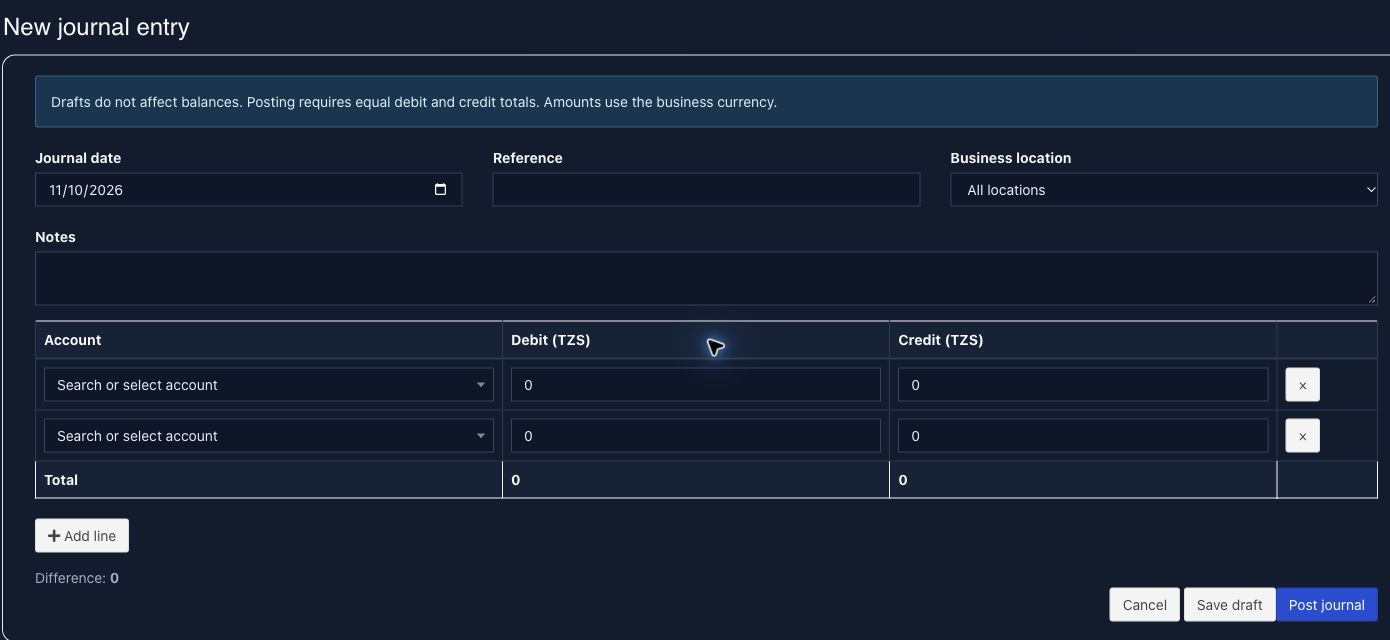
Corrections and reversals
Use the provided correction/reversal workflow for posted entries. A reversed journal retains its history. Do not post a manual duplicate of a sale, payment or expense already mapped into accounting.
Payment accounts versus accounting accounts
Payment Accounts tracks operational money accounts. Accounting uses a chart of accounts and debit/credit entries. They are related through configured mappings; creating one does not automatically prove the other is complete.
Use the chart of accounts and financial statements
Reliable financial statements require complete opening balances, correct mappings and consistent postings.
Step by step
- Review the chart of accounts with the person responsible for your accounts. Confirm asset, liability, equity, income and expense classifications.
- Review transaction mappings and opening balances before relying on totals.
- Open the required statement and select the same period and business scope used for your checks.
- Investigate unexpected totals through the account ledger or journal entries and retain supporting records.
Which report to use
| Report | What to check |
|---|---|
| Trial balance | Debit and credit balances across accounts. |
| Balance sheet | Assets, liabilities and equity at a date. |
| Ledger | Transactions making up an account balance. |
| Cash flow / payment account report | Movement of recorded money for the chosen scope. |
Further training
Open the reporting and accounting quick guide. It contains linked chapters and examples that can be used in any workspace.
Read the Profit / Loss Report
Use this report to understand recorded revenue, stock costs and expenses for a period. Profit is not the same as cash in the bank.
Step by step
- Select the location or all permitted locations. Choose a preset or custom date range and apply it. Results refresh after selection.
- Read Costs and deductions alongside Revenue and income. Review opening/closing stock, purchases, sales, returns and expenses.
- Review cost of goods sold, gross profit and net profit.
- Use the breakdown tabs to investigate products, categories, brands, locations, invoices, dates or customers.
- Use Print or the available table exports and check the period and currency on the output.
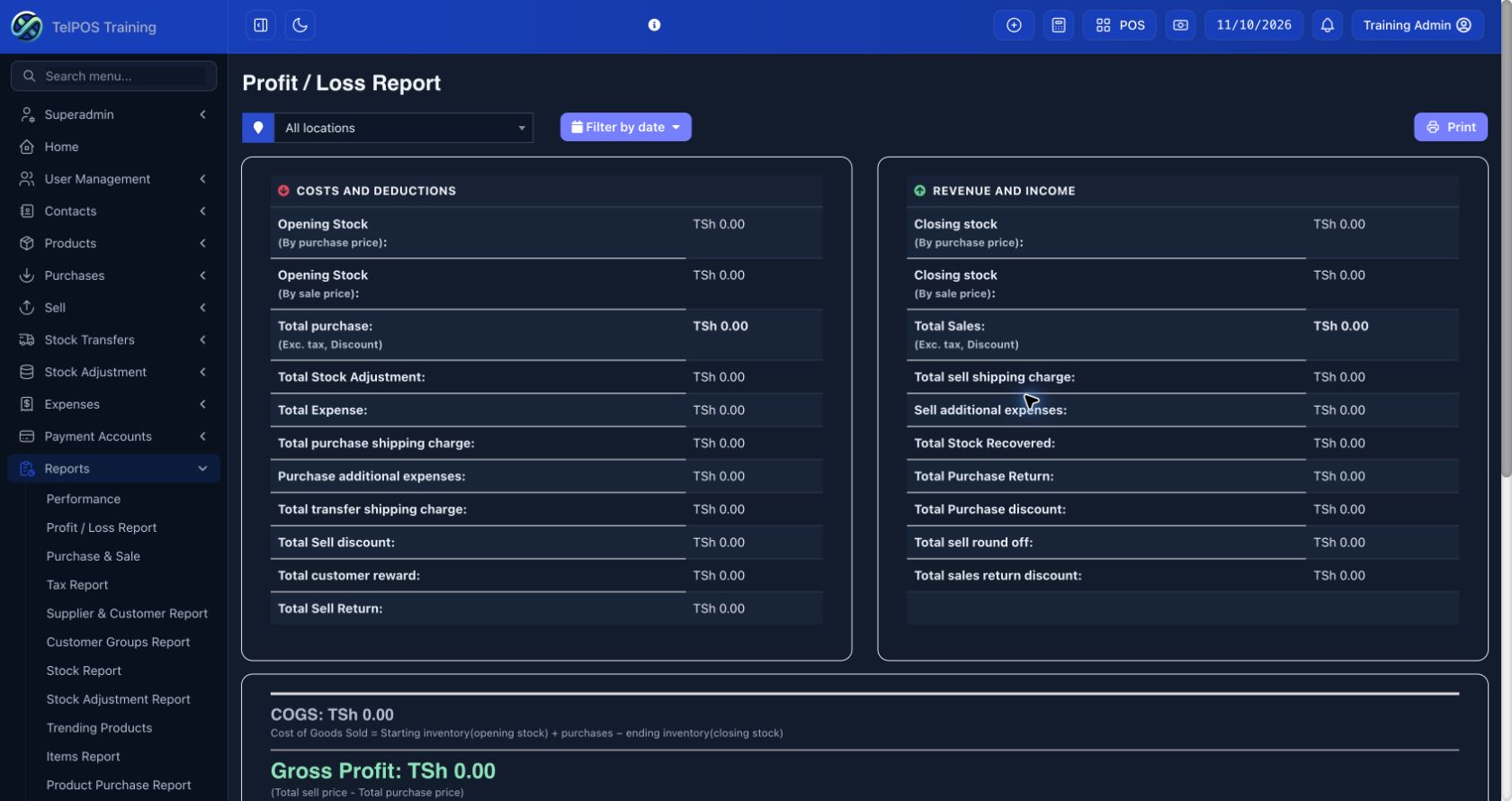
Check profit inputs
Missing purchase costs, incomplete opening stock, unrecorded expenses or duplicate transactions can distort profit. Flexible-item cost is excluded when no internal cost was entered. Review source transactions before adjusting a report result.
Why breakdown totals can differ
Detailed product/category/brand profit views may consider line discounts while excluding invoice-level discounts, as noted on the report. Compare like-for-like figures and read the explanation on the screen.
Review monthly, annual and date-range performance
The Performance report presents Revenue, Gross Profit, Return on Assets and Customers in a shareable scorecard.
Step by step
- Use the top language selector for English or Kiswahili. Choose the location scope.
- Open the standard date filter. Choose a month, a full calendar year or a custom range and apply it. The report refreshes automatically.
- Read the four indicators and the previous-period comparison.
- Open the calculation explanation if a figure needs clarification. Use the guide link on the right for additional accounting training.
- Export CSV, Excel or PDF, or choose Print / Save PDF. Confirm the title, period, location, currency and values in the output.
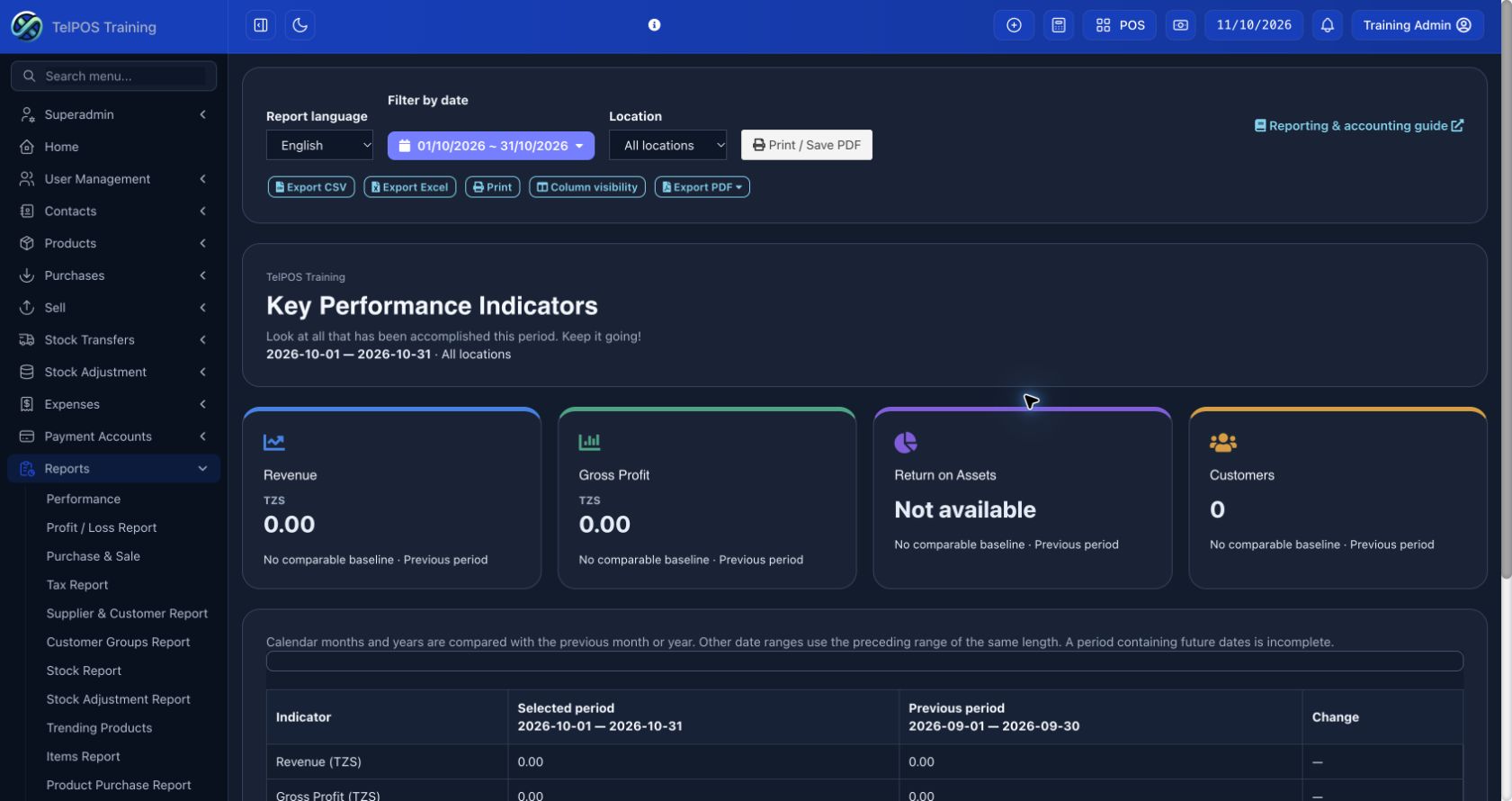
What each indicator means
- Revenue: final sales less final returns and invoice tax for the selected dates; final totals already reflect discounts and other charges.
- Gross Profit: uses the ERP profit calculation for the same dates and permitted locations.
- Customers: distinct customer records on final sales in the period; a shared Walk-In Customer record counts as one record, not as a count of individual shoppers.
- Return on Assets: net profit divided by average recorded opening and closing asset balances, expressed as a percentage.
When Return on Assets is unavailable
It requires suitable accounting asset balances, including a recorded opening balance before the period and positive opening/closing balances. It is not attributed to a single location or a restricted location set. “Not available” does not mean zero performance.
Read the comparison fairly
A complete calendar month compares with the previous month; a complete calendar year compares with the previous year. Other ranges compare with the preceding range of equal length. A zero or missing previous baseline cannot produce a meaningful percentage. Periods including future dates are incomplete.
Choose the right operational report
Select the report that answers your question, then apply the same location and dates when comparing results.
Step by step
- Choose a report from the directory below. Available reports depend on your permissions and package.
- Set location, date and relevant product/contact filters. Wait for automatic filtering to finish.
- Open or identify the underlying transactions where you need to explain a total.
- Export only the required scope and review the result before sharing.
Report directory
| Your question | Report |
|---|---|
| What was bought and sold? | Purchase & Sale |
| What stock is available and what is it worth? | Stock Report |
| Which items were purchased or sold? | Product Purchase / Product Sell / Items Report |
| Who owes us, or whom do we owe? | Supplier & Customer Report and contact ledgers |
| What money was paid or collected? | Purchase Payment / Sell Payment Report |
| Where did spending go? | Expense Report |
| What tax was recorded? | Tax Report |
| What changed in stock? | Stock Adjustment Report and Stock History |
| Which products are popular? | Trending Products |
| How did a cashier or representative perform? | Register / Sales Representative Report |
| Who changed a record? | Activity Log, where available |
Sales date versus payment date
Sales reports usually follow transaction dates. Payment reports follow recorded payment dates. A payment collected this month for last month’s invoice can therefore appear in a different period from the sale.
Daily close and month-end checks
A short routine keeps stock, payments and reports easier to trust.
Step by step
- Check that final sales and received purchases for the day have been saved and mobile sync has completed.
- Count cash, reconcile payment methods and close the register where used. Investigate differences.
- Record missing expense receipts and supplier payments. Review unlinked payments and customer balances.
- Review stock alerts, pending orders and shipments. Assign follow-up work.
- At month end, compare Profit / Loss and Performance for the same dates and locations, reconcile accounting balances and export the reviewed reports.
Resolve differences at their source
Correct the originating transaction or use an authorised adjustment. Keep a reference and explanation. Do not add balancing sales or arbitrary stock quantities solely to make a dashboard match a target.
Business settings and enabled features
Administrators configure how their business works. Review changes carefully because settings can affect future transactions and reports.
Step by step
- Open the relevant settings tab and review the current values before changing them.
- Confirm business name, logo, financial-year start, date/time format and business currency.
- In Modules, enable the built-in features your business needs and is entitled to use. Save the settings.
- Review sales, purchase, stock and payment options with the team that uses them. Test a small authorised workflow after a change.
Package access is separate
Turning on a setting does not add an unpurchased module to a subscription. Role permissions and location access also control what staff can see. Request package changes from your administrator or support.
Custom fields
Assign useful labels to custom fields only when your business needs them. Unassigned fields should stay out of normal lists and exports. Use clear labels that colleagues will understand.
Add users, assign roles and restrict locations
Use an individual account for each staff member. Give access that matches their work.
Step by step
- Review or create a role with the permissions required for the job.
- Add a user with a unique username and correct contact details. Assign the role.
- Choose all locations or only the specific locations the user may access. Enable mobile access if included and needed.
- Save and ask the user to sign in with their own credentials. Verify the intended menus and permitted locations.
Location administrators
An administrator can have the same role capabilities as another administrator but access only an assigned branch. Review both role permissions and location restrictions; neither should be assumed from the username.
When a user cannot be added
Check package user limits, duplicate usernames, required fields and permissions. Record the visible error for support. Deactivate departing staff through the supported account action rather than sharing or reusing their login.
Configure taxes, payment methods and terms
Use settings approved for your business. Tax values and rates must reflect the applicable business requirements.
Step by step
- Create the tax rates and any tax group your business uses. Confirm whether product prices are inclusive or exclusive.
- Assign the appropriate product tax and invoice-level tax without unintentionally charging the same tax twice.
- Review location payment methods and their default payment accounts.
- Set customer or supplier payment terms and check the due date when saving documents.
Check the output
Preview an authorised example invoice and compare line totals, tax and grand total with your expected calculation. Document currency and payment method are different: paying by bank does not determine whether the invoice is in TZS or USD.
View your package and software contract
Your subscription determines the available service period and package features.
Step by step
- Open the subscription page and review the active package, start date and end date.
- Use View Contract when a signed contract is available. Read the package features and renewal terms.
- Follow the renewal or support instructions before expiry. Keep the administrator email and phone number current for reminders.
Signing a contract
If you receive a signing link, check the business and contract details, enter the requested name and date, draw your signature and submit only when you agree. An unsigned link is valid for up to 48 hours; it stops working after signing. Ask the supplier for a new link if needed. Keep the confirmation and signed copy.
Need help?
Contact TelPOS support on 0758 620 542 for package and renewal assistance. Do not send your password when requesting support.
Choose and assign an invoice layout
The invoice layout controls how a document looks. The invoice scheme controls its numbering. Assign the layout to the correct business location.
Step by step
- Open Invoice Layouts and choose an assigned template your business is allowed to use.
- Create or edit a layout using that template. Set headings, labels, business/contact information and the fields to display.
- Save the layout. Open the business location settings and choose the intended invoice layout for sales and applicable POS printing.
- Create an authorised draft or sample document and use its print/preview action to check the output.
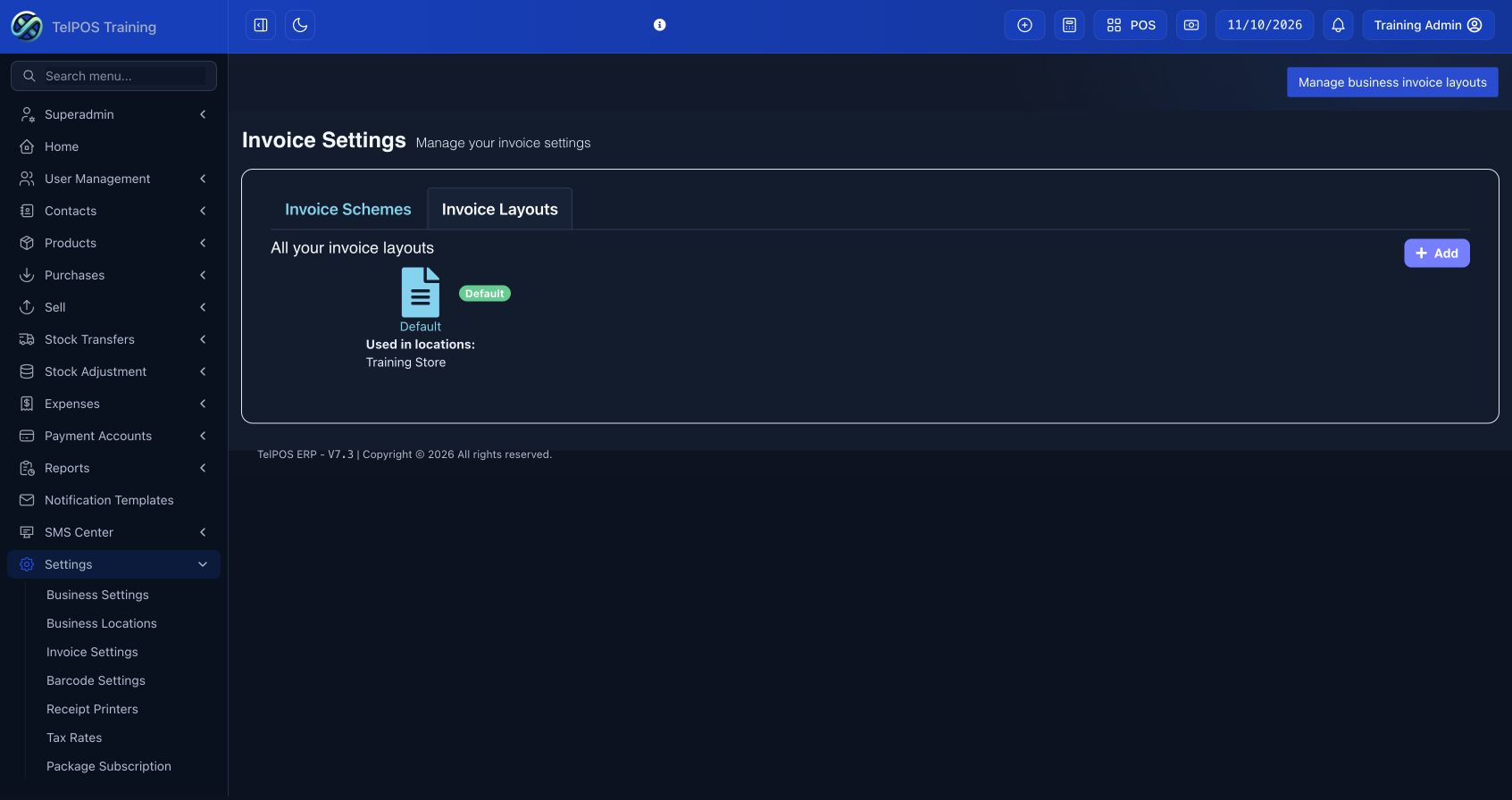
Template access
Business administrators see layouts assigned to their business. Layout assignment across businesses is managed from the admin dashboard. Customer-specific payment details belong to that business’s layout and must not be reused in another business.
A4 and receipt layouts
Use A4 for full-page invoices and the supported 80 mm or 58 mm option for thermal receipts. Paper width and printer settings must agree with the selected layout. A narrow receipt is not a scaled-down A4 document.
Set the logo, stamp and authorised signatory
Branding and signatory settings help the invoice carry the correct business identity.
Step by step
- Upload a clear invoice logo using the supported file type and size.
- Upload the business stamp if required. Use a clean image with suitable transparency so it does not obscure text.
- Upload the authorised signature, then enter the signatory name and designated title. In the mobile signature area, draw and save the signature where that option is available.
- Save and preview a document using the assigned location layout. Check the signature above the signatory name and title, and the stamp in its allocated area.
Preview every affected layout
Elegant, Classic and assigned custom templates can place branding differently. Check A4 output on both web and mobile. If a signature is missing, confirm the saved settings, the assigned location layout and whether the relevant business feature is enabled.
Use authorised artwork
Upload only the logo, stamp and signature approved for your business. Avoid adding a second signature image inside unrelated footer text if the template already has an authorised-signatory area.
Edit invoice payment instructions and numbering
Give customers clear payment instructions and consistent document numbers.
Step by step
- Edit the payment instructions in the selected invoice layout. Enter the correct bank, account, mobile-money or payment reference information for your business.
- Where the assigned template provides two payment blocks, edit each heading and its details, then preview their order.
- Edit or select the invoice scheme to set the permitted prefix and number format. Leave Invoice No. blank during entry to use automatic numbering.
- Preview invoice, quotation and proforma documents to confirm that the document heading follows the selected status.
Currency instructions
If your business prefers TZS, a clear editable heading is TZS - MAIN PAYMENT ACCOUNT. An optional second block can read USD - OPTIONAL PAYMENT ACCOUNT. Use only the accounts your business actually supports.
Avoid numbering conflicts
Do not reuse an issued invoice number. Changing a layout affects presentation; changing a scheme affects numbering. Ask your administrator before changing either during an active reporting period.
Create a location for a multi-location business
A location is a branch or outlet within the same business. Locations share the business but keep location-specific stock and operational records.
Step by step
- Confirm that the package allows another location. Select Add.
- Enter a clear location name, location identifier and accurate address/contact details.
- Choose its invoice scheme and invoice layouts. Configure available payment methods, default payment accounts and receipt printing settings where shown.
- Save, then review user permissions so only the intended staff can access the location.
- Assign relevant products to the new location and enter verified opening stock or receive stock through a transfer/purchase.
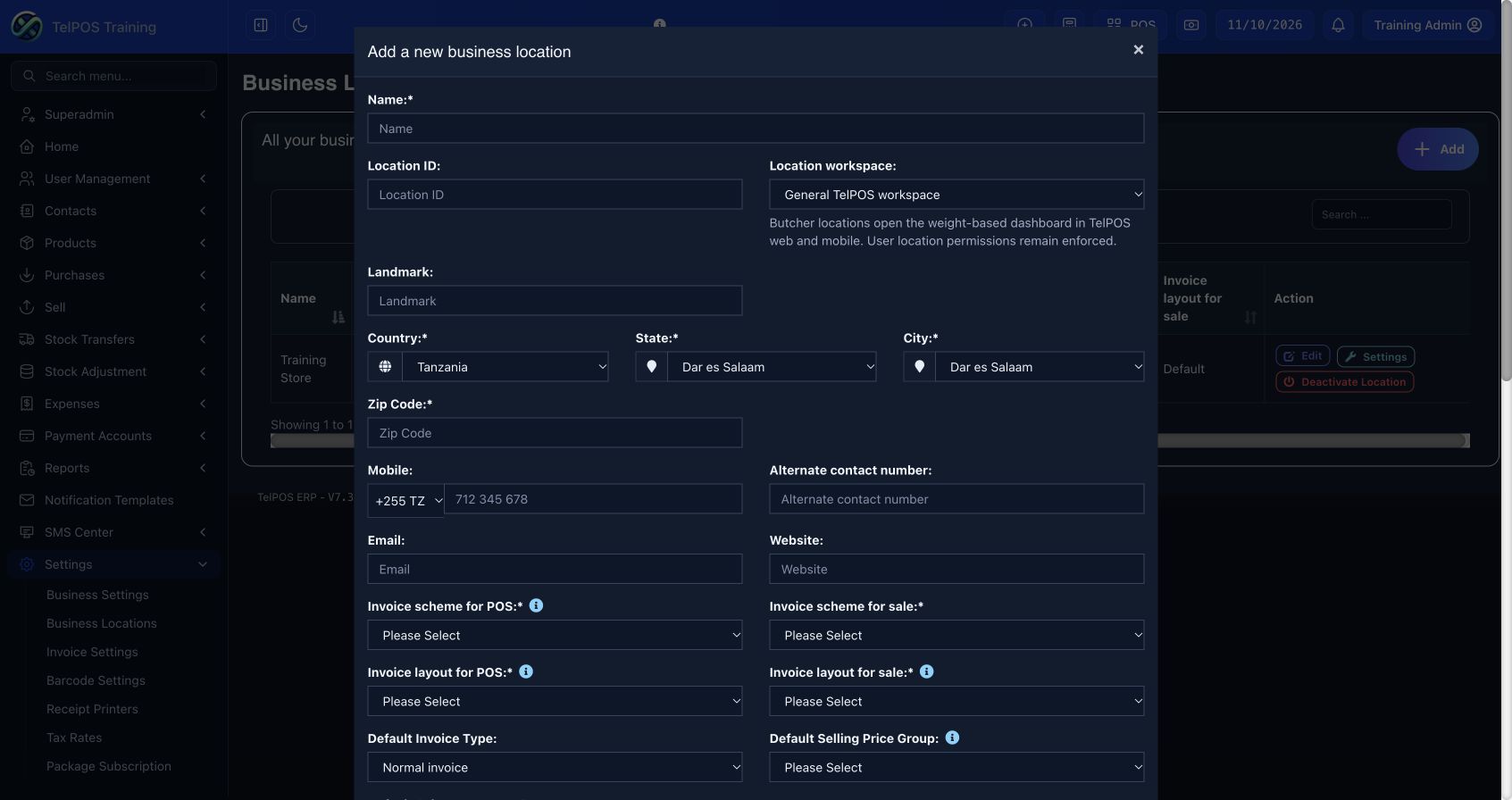
Location versus separate business
Use a location for branches belonging to the same business. A separate company with independent ownership/accounts normally needs its own business workspace. Adding a location does not automatically create stock there.
Validate the new branch
Sign in as an authorised branch user, select the location, preview its invoice and confirm that its products, stock and payment options are correct before recording live sales.
Work and report across branches
Select the correct location at the start of each transaction. Permissions determine which branches a user can work with.
Step by step
- Check the selected branch before adding a sale, expense, purchase or order.
- Use stock transfers for movement between branches rather than unrelated sales and purchases.
- On reports, choose one location for branch performance or all permitted locations for a combined view.
- If a location is missing, ask the administrator to check active status, user access and product assignment.
Common causes of missing products
The product may not be assigned to that location, may be inactive/not for selling, or may have no available stock under the business selling rules. Review the product and stock history before creating a duplicate product.
Bulk SMS: benefits and responsible use
Bulk SMS helps businesses communicate directly with customers using the phone numbers saved in their records.
Useful business messages
- Confirm customer orders and communicate fulfilment progress.
- Remind customers about payment due dates and overdue balances.
- Send approved service updates, collection notices and appointment information.
- Run relevant campaigns for opted-in customer groups.
- Track delivery outcomes and manage SMS spending from the credit balance.
Before sending
Use accurate contact numbers, an approved sender ID and clear wording. Obtain the required consent for marketing and respect requests to stop. Send only information the recipient needs; do not include passwords or unnecessary sensitive details.
What affects availability
SMS requires an enabled service, usable credits, approved sender settings and provider connectivity. Email fallback requires a valid email address and configured email service. A queued or accepted message is not necessarily delivered.
Send SMS and review delivery
Start with a small, authorised test message before a large customer campaign.
Step by step
- Check available credits and the selected sender ID.
- Choose an individual recipient or a relevant contact group. Verify the recipients and avoid duplicate numbers.
- Write a concise message or use an approved template. Check any name, amount or order placeholders in the preview.
- Review the recipient count and any estimated message/credit usage. Send or schedule using the available controls.
- Open Delivery Reports to check queued, accepted, delivered and failed messages. Investigate failures before resending.
Message length
Long messages and some characters can require multiple SMS segments. Review the usage shown by the service before sending. Keep important details and the business identity clear.
Campaigns
Name campaigns clearly, select the intended group and check the schedule/time zone. A repeated send can charge credits again and inconvenience recipients, so inspect previous delivery results first.
Top up SMS and use transaction notifications
SMS credits are separate from invoice payment status and may be managed centrally for your workspace.
Step by step
- Open Billing or Top up (Ongeza SMS in Kiswahili). Review the selected SMS package or credit amount.
- For manual top-up, submit the request and required payment reference, then wait for administrator approval.
- Automatic top-up is available only when an active integrated payment gateway offers it. Check confirmation and the updated balance.
- Review the supported transaction templates and automation settings for order creation, partial/completed fulfilment or due reminders. Save the intended channels and wording.
Avoid duplicate reminders
Check that the transaction event, contact phone/email and template are correct. Do not manually resend just because delivery is still queued. Follow Delivery Reports and the configured reminder schedule.
Email fallback
When configured, email provides a fallback if SMS cannot be sent, such as when credits are unavailable. Keep customer emails accurate. Contact support if neither channel records a successful result.
Use the TelPOS ERP mobile app
Keep your business moving from your phone: serve customers, record daily work and follow performance wherever you are.
Why use the mobile app?
- Work beyond the counter. Create invoices and customer orders, record purchases and expenses, and look up products and customers without returning to a desk.
- Continue through connection interruptions. Supported sales, purchases and expense entries can be saved on your device and queued for sync.
- Stay informed. Review sales, unpaid invoices, stock and reports for the locations your role allows.
- Keep your documents consistent. Use the A4 invoice layout assigned to your business location; preview, share or print through supported device connections.
- One connected business. Web and mobile use the same workspace, roles, package permissions and location access. Choose English or Kiswahili and a comfortable theme.
Get ready before going offline
- Install the app using the download widgets below. Sign in while connected, using your ERP workspace domain and account.
- Select your business location and let the app load the customers, products and settings you need.
- Use supported offline entry screens. Check the saved or pending-sync confirmation after each transaction.
- Reconnect and review pending sync. Resolve any validation or stock conflict shown by the server.
- Confirm important records in the web workspace before switching devices, signing out or clearing app data.
Offline work and synchronisation
Offline invoices are provisional: their official document numbers are assigned after successful server synchronisation. A newly created offline product needs its server product ID before it can be selected on an invoice. Do not issue the same transaction again on the web while its mobile copy is pending.
Cached reports can show the last available data and supported local pending changes. They are not a live view of other branches. Final stock and financial reports depend on successful sync and the server’s validation.
An internet connection is needed for first sign-in, fresh server reports, sending SMS, online payments, marketplace publishing and other online-only actions. Offline support and printer connections vary by feature, package and device.
A missing menu or stale access
Refresh the workspace and ask your administrator to check package, mobile and location permissions. Check pending work before signing out. For detailed invoice, order, report and printing steps, continue to Mobile invoices, orders and reports.
Mobile invoices, orders and reports
Mobile records should follow the same business process as the web: order requested quantities, invoice served quantities, and record actual payments.
Step by step
- Create a sale/invoice, select the customer and location, then choose normal catalog or flexible entry where offered.
- To serve an existing order, select its order number and review the populated items. Reduce quantities to the amount being served now.
- Check currency, tax, totals and payment. Issue once and wait for confirmation; if interrupted, search saved invoices before retrying.
- Preview the A4 invoice and confirm it uses the layout assigned to that business location.
- Open Reports, select the report and date/location filters, then share or export only the authorised scope.
Inventory, expenses and accounts
Authorised administrators can maintain product details, price, image and stock using available inventory actions. Choose optional brands/categories when useful. Expense category/subcategory and payment-account selection help keep reports organised. The Payment Accounts widget opens accounts and any unlinked-payment tasks.
Printing
Open printer settings from Account and choose a supported Bluetooth, USB, network or built-in printer connection. Grant the required device permission, select the paper width and print a test. Supported transports differ by device and operating system; use preview/share when a direct printer is unavailable.
Manufacturing: recipes, production and reports
Use this workflow only when Manufacturing is included and enabled. Record real production so raw-material use and finished-goods stock stay connected.
Step by step
- Create the raw-material and finished-product records with correct units and costs.
- Create or review the finished product’s recipe, component quantities, expected output and production costs.
- Create a production entry for the location and actual output quantity. Check ingredient availability.
- Complete the production using the module’s status controls when manufacturing is finished. Review material consumption, output stock and production reports.
For manufacturing performance
Record purchases, production costs, losses and finished-goods sales consistently. Then use Profit / Loss and Performance for the same period. Do not record produced stock again as unrelated opening stock.
Restaurant: tables, orders and kitchen work
Restaurant features appear when configured for your business.
Step by step
- Choose the table and service staff where required, then add the customer’s items.
- Send the order to the kitchen using the available order control.
- Use the kitchen/service status controls to track preparation and serving. Add later items to the correct open bill.
- Review the final bill, collect payment and complete the sale.
Prevent duplicate bills
Check the open table/order before starting another bill. Kitchen status and invoice payment status are separate. Use the assigned printer and the appropriate bill or receipt layout.
Hotel management: bookings, guests and room changes
Use the hotel dashboard for room operations and the booking’s own actions for extensions, payments and room transfers.
Step by step
- Check room availability, guest details and the intended arrival and checkout dates before saving a booking.
- Choose the room, number of nights/rate and any authorised discount. Record the payment actually received.
- For an extended stay, use Extend Booking and review the new checkout date, charges and due amount.
- To move a guest, choose Change Room, search an available room and review remaining-stay price difference, discount and payment details.
- Review room-change history and guest stay history. Check out through the booking action when the stay ends.
Operational dates
Hotels can use an operational-night cutoff that differs from midnight. Always read the calculated checkout date/time before saving, especially for early-morning arrivals. Ask the hotel administrator about the configured night boundary and standard checkout time.
Availability and payment
After a room transfer, confirm the old room is available and the new room holds the active booking. Cleaning can be displayed as Available (Cleaning); maintenance blocks availability. A room move does not erase unpaid amounts. Use the payment fields to settle an existing due balance.
Staff, attendance, leave and payroll
HR and payroll functions depend on the enabled employee module and your permissions.
Step by step
- Maintain authorised employee details, departments and salary settings.
- Record attendance and leave using the available approval process.
- Generate payroll for the intended employees and period. Review earnings, deductions and applicable statutory values before approval.
- Record payroll payments through the supported action and review the payroll reports using the date and employee filters.
Protect payroll information
Restrict salary and identity details to authorised staff. Review payroll with the responsible person before paying. A generated payroll and a paid payroll are different states.
Repairs, assets, CRM and other specialist workflows
Specialist modules extend the core system for particular work. Use the menu names provided by your enabled module.
Repairs and workshop jobs
Create a job record with the customer, equipment/serial details and reported fault. Record diagnosis, parts and service charges, update the job status, then bill and collect payment through the supported sales action. Check parts consumption and avoid invoicing the same job twice.
Assets
Record assets with their identifying information and purchase details. Use assignment, transfer, maintenance and disposal actions where available. Keep the asset register consistent with accounting records used for financial reporting.
CRM and follow-ups
Record leads and customer follow-ups, assign responsibility and update outcomes. Use approved communication templates and keep promised follow-up dates current.
Projects, field work, laundry and other modules
Begin with the module’s customer/job/order record, assign the responsible team, update progress, then use its linked billing and payment actions. Review the module report and corresponding sales records. Availability and exact controls depend on the subscribed module; contact support for training on a specialised workflow.
Marketplace: manage eligible online products
Online publishing is available only for businesses whose package includes the marketplace module.
Step by step
- Check product category, brand, description, images, price and available stock in the tenant workspace.
- Sync eligible products to the online catalog. Review category approval and publication requirements.
- Edit online details and publish only products ready for customers. Preview the product page and confirm shop, price and stock information.
- Review online orders and use the supported fulfilment process to update order and payment status.
Keep stock current
Publishing and online synchronisation require a connection. Complete local/mobile transaction sync so marketplace availability can reflect stock movements. Do not treat an offline stock change as already visible online.
Customer communication
Check coupons, promotions and delivery information before publishing an offer. Marketplace customer accounts and tenant business accounts have different purposes.
Solve common problems
Start with the current screen, selected business/location, dates and the saved-record list. These checks often explain a missing or unexpected result.
A menu or button is missing
Check package access, enabled modules, role permissions and permitted locations. Ask your administrator to review these settings.
A product cannot be found
Check product name/SKU/part number, active status, Not for selling, location assignment and stock availability. For a variable product choose the correct variation.
An invoice will not save
Read the validation message. Confirm customer, location, status, item quantity, price and currency/rate. Check the saved sales list before retrying after a timeout. Share the time, screen and error with support, without sharing your password.
The invoice looks different
Check the layout assigned to the transaction’s business location, paper size and signatory settings. Use Print Invoice for A4, or the explicit thermal width for receipts. Refresh mobile settings when a location layout has changed.
A report is empty or totals differ
Check filters, transaction status, transaction dates versus payment dates, permitted locations and sync state. Review costs, returns, discounts and opening balances. Use the calculation note for the specific report.
SMS has not arrived
Check credits, sender approval, recipient number and Delivery Reports. Accepted is not the same as delivered. Verify configured email fallback before sending duplicates.
Contact support
Call 0758 620 542. Provide workspace, affected screen, approximate time, document reference and a screenshot with unnecessary private details removed.
Business terms and a quick practice checklist
Use these definitions when training a new team member.
Key terms
| Term | Meaning in daily work |
|---|---|
| SKU | Your unique catalog code for an item. |
| Part number | An optional manufacturer/spare-part identifier. |
| Variation | A product option, such as size or colour. |
| Invoice scheme | The document numbering rules. |
| Invoice layout | The document’s printed presentation. |
| Due / Madeni | An amount still unpaid. |
| Order remaining quantity | The quantity still to be served from an order. |
| Opening stock | Verified stock on hand at the start of your records. |
| Gross profit | The report’s sales margin after its applicable direct costs. |
| Net profit | Profit after the report’s applicable expenses and adjustments. |
Practice in a training workspace
- Add a sample customer and product.
- Record a small opening quantity and verify stock.
- Create an order and serve only part of it on an invoice.
- Record a partial payment and check the remaining balance.
- Create a flexible service invoice and preview its layout.
- Record an expense and assign its payment account.
- Run Profit / Loss and Performance for matching dates.
- Export and check the result before sharing.
Reporting & accounting quick guide
A practical guide to performance indicators, accounting setup and month-end review, for any TelPOS ERP workspace.
Performance report
1. Prepare the records
Use final sales invoices, received purchases, correctly dated expenses, sales returns and accurate product purchase costs. Drafts, quotations and orders are not revenue. Use separate customer records where possible: all sales under a shared walk-in record count as one customer.
2. Open the KPI report
Go to Reports > Performance. Use the standard Filter by date picker: Today, This Month, This Year or Custom Range. Confirm a custom range with Apply; preset ranges update immediately. Location and language changes refresh results automatically, without a separate View button. Choose All locations or an allowed location. Calendar months/years compare to the preceding month/year. Other ranges compare to the preceding equal number of days. Future dates make a period incomplete.
3. Read the indicators
Revenue: final sales less sales returns, excluding invoice tax, with discounts and invoice charges reflected in final totals.
Gross Profit: uses the same stock-costing calculation as the Profit / Loss Report.
Customers: distinct customer records with final sales in the period.
Return on Assets (ROA): period net profit / average opening and closing asset ledger balances x 100. It is not annualized. It is only shown for the whole business, with usable positive asset balances.
4. Export and verify
Use the report table export buttons for Excel/CSV/PDF, or Print / Save PDF for the branded full report. Check the selected period and location before sharing. Gross profit and net profit should reconcile to the Profit / Loss Report using the same filters. Revenue can differ from its pre-discount sales figure because the KPI uses final invoice values after returns and charges.
5. Missing ROA is a setup signal
An empty or incomplete asset ledger must not be treated as zero assets. Open Accounting, review your chart of accounts, opening balances and transaction mappings. An accountant should confirm that the asset ledger includes all relevant assets and accumulated depreciation. Do not enter balancing amounts simply to make a ratio appear.
Accounting setup and month-end
1. Chart of accounts
Open Accounting > Chart of Accounts. Set up the business asset, liability, equity, income and expense accounts. Correct account types matter: asset balances feed ROA. Do not deactivate accounts merely to hide balances.
2. Opening balances and journals
Open Accounting > Journal Entry > Add. Enter the correct accounting date and location, a clear reference/memo, and balanced debit and credit lines. Save a draft for review or post with the required permission. Enter opening balances before the first reporting period using approved prior records. A draft is not a posted balance. Correct posted journals through the correction/reversal workflow; retain the audit history.
3. Map normal business transactions
Open Accounting > Transactions. Review Sales, Purchases, Expenses and Payments and use Map transaction where a mapping is missing. Configure the appropriate default accounts under Accounting settings for future transactions. Mapping a payment account alone is not the same as completing all general-ledger mappings. Avoid duplicating an automatic posting with a manual journal.
4. Reconcile before sharing
Review Accounting reports: Trial Balance and Balance Sheet. Check opening and closing asset balances, bank/cash against statements, receivables against unpaid invoices, payables against supplier balances, and stock against inventory. Record approved depreciation and other adjustments with the proper dates. Profit / Loss uses ERP transaction and stock data; verify any journal-only adjustments separately when preparing statutory accounts.
5. Monthly checklist
Confirm all transactions for the period are entered; review missing purchase costs and negative stock; map unlinked transactions; reconcile returns, discounts, cash and bank; review journals; check gross/net profit with matching filters; generate the KPI report; save an export. Only close an accounting period after the responsible accountant approves it.
Troubleshooting
No report menu: ask your administrator for Profit / Loss report permission and location access.
Figures look too high: check dates, locations, duplicate invoices, missing costs and shared walk-in customer records.
No comparison: the prior period is zero or unavailable.
ROA missing: choose All locations and verify positive opening and closing asset balances and complete accounting mappings.
Support: 0758 620 542.
Guidance by business type
Manufacturing and industry
Manufacturing businesses should check recipes/BOMs, ingredient purchase costs, material usage, finalized production, waste and production reversals. Receive and cost finished goods before recording their sale. Include agreed labour and factory overhead through the configured production-cost workflow. Review Manufacturing reports alongside inventory and Profit / Loss. Missing costs can overstate gross profit; the KPI does not invent production costs.
Retail and wholesale
Maintain accurate purchase costs, opening stock and stock allocations. Record returns against the correct invoices and check overselling/negative stock. Reconcile discounts and invoice charges before comparing revenue with the pre-discount sales line in Profit / Loss.
Services and agencies
Record final service invoices and actual expenses with correct dates. A service with no recorded direct cost can show its full value as gross profit. Where flexible invoice items are used, verify their cost treatment and reconcile expenses separately. Revenue is invoiced revenue, not necessarily cash collected.
Enable or disable the feature
A business administrator can open Business Settings > Modules and toggle Key Performance Indicators. Users also need Profit / Loss report permission and access to the relevant locations. Disabling the report hides access without deleting transactions or accounting records.
Continue with Performance reports, Profit / Loss, expenses, journal entries and financial statements. For help, call 0758 620 542.
TelPOS Mail Administration
A business email address on your own domain helps customers recognise who they are dealing with and gives your team a consistent identity for invoices, bookings, support and other official correspondence.
Why use official business email?
An address such as info@yourbusiness.com represents your business rather than one employee's personal Gmail account. You can create addresses for roles or staff, manage access when people join or leave, and keep business conversations with the organisation. A personal Gmail address may still be useful, but it can make ownership and handover of customer correspondence harder.
TelPOS Mail lets an authorised administrator create and manage mailboxes for a domain assigned to the workspace. Staff can read and reply in TelPOS Mail or use the same mailbox in Outlook.
Set up TelPOS Mail
- Open Mail Administration and select the assigned domain, if your dashboard offers more than one.
- Enter the staff member’s mailbox name and a unique password, confirm the password, then select Create mailbox.
- Give the full email address and password to the account owner privately. Staff can sign in to TelPOS Mail to send, receive and reply to messages.
Work with existing accounts
The email accounts list shows the mailboxes available for the selected domain. Where account controls are enabled, use Open mailbox to view an authorised account in TelPOS Mail, or Manage to reset its password, suspend sign-in or remove it from service. Mailbox openings are recorded in the dashboard. Review the full address before changing an account.
Connect Outlook or another email app
Open Email app setup for your domain’s incoming and outgoing server settings. Enter the full email address as the username and its mailbox password. Use the exact hostnames and security settings shown in the dashboard; IMAP commonly uses port 993 with SSL/TLS and SMTP uses port 587 with STARTTLS.
Domain access and support
You can see only mail domains assigned to your workspace. If the menu or a domain is missing, ask your workspace administrator to check module availability and access. Never send a mailbox password through an inquiry form or support chat. For help, call 0758 620 542.
Bulk SMS, WhatsApp and Marketing
Reach customers with relevant campaigns and timely updates. SMS and WhatsApp are separate channels; your business can choose a supported channel for each enabled automation.
Send a campaign to interested customers
- Check customer phone numbers and add customers who have agreed to receive marketing to the appropriate contact group.
- Create a campaign for a useful offer, new arrival or service update. Choose the contact group and review the message before sending.
- Select SMS or WhatsApp where available. Check the sender, message credits, any approved WhatsApp template and the estimated recipients.
- After sending, review delivery reports and correct failed contacts. A queued message is not proof of delivery.
Set up automatic stock and order updates
In Automations, enable the events your business needs and choose the channel for each event. New product and Product restocked alerts go to a selected, consenting contact group; a restock threshold can limit when the latter runs. Order created, partially served and completed notices go to the customer on that order when the corresponding event is enabled. TelPOS queues these messages when the qualifying event occurs.
For WhatsApp, connect an authorised business sender and configure an approved template for the event. For SMS, ensure the service, sender ID and credits are available. Recipient consent, correct numbers, permissions and provider connectivity still apply. If those requirements are missing, an automatic message may not be delivered.
Keep marketing useful
Use short, accurate messages that identify your business and explain the next action. Send promotional stock alerts only to customers who agreed to receive them, respect opt-outs, and avoid unnecessary sensitive information. Test an automation with a permitted number before relying on it for customer communication.
Your business, organised.
Wherever you work.
Are you a business owner looking for a simpler way to manage your day? Bring sales, invoices, stock, expenses and customer relationships together with TelPOS ERP.
- Keep work moving. Use supported mobile tasks offline and sync when you reconnect.
- Know where you stand. Turn everyday records into clearer business reports.
- Make room to grow. Choose the tools and locations your business needs.
Start with the app, explore the features and let our team help you choose the right package.
Features, offline support and subscriptions vary by package and device. Downloading the app does not include every paid feature.
Your business in your pocket.
Download TelPOS for Android and get started.
GET IT ONGoogle PlayHelp businesses succeed. Grow with TelPOS.
Are you a consultant, technology provider or business adviser? Introduce TelPOS ERP to businesses that need better management tools and build a new service offering with our team.
Earn commission on eligible sales under our partner programme. Commission rates and payment terms are agreed with our team before you start.
Download the TelPOS ERP app
Choose your device and start with your existing workspace account.
App Store download link will be available here once published.
Available features depend on your package, role, app version and device. Review pending sync before signing out.
Your feedback helps us make this guide better.